Uploading as a guest 

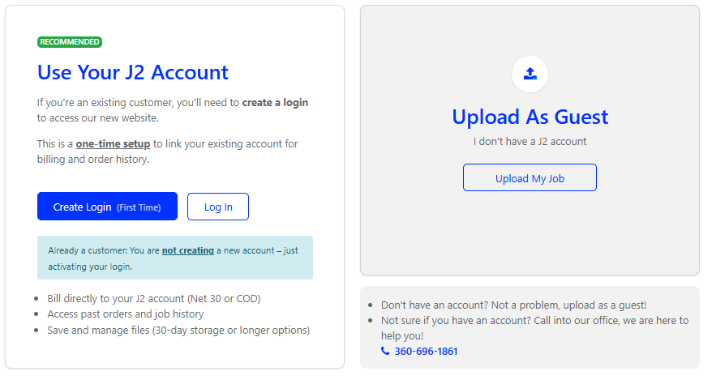
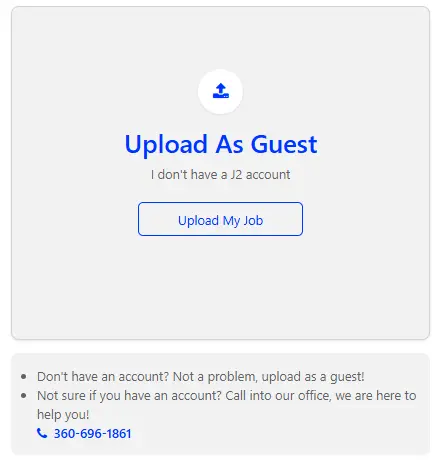
When uploading as a guest click on the "Upload my job" in the upload as a guest box. Be aware you will not be able to recall this print job in the future. You will not be able to retain your shipping/billing address in future uploads. 

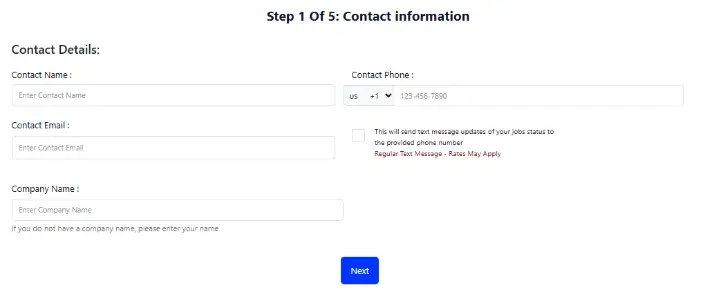
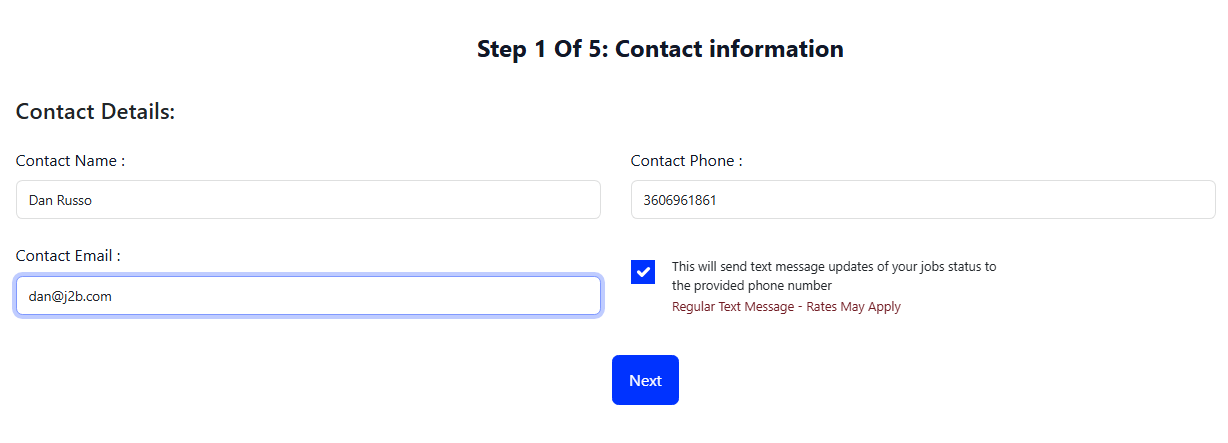
Step 1 of 5 - Contact Information

Now that you have selected Upload you will be directed to Step 1 of 5 in the upload process. Fill out the contact information and choose if you would like to receive text message alerts regarding your job by clicking in the box. 


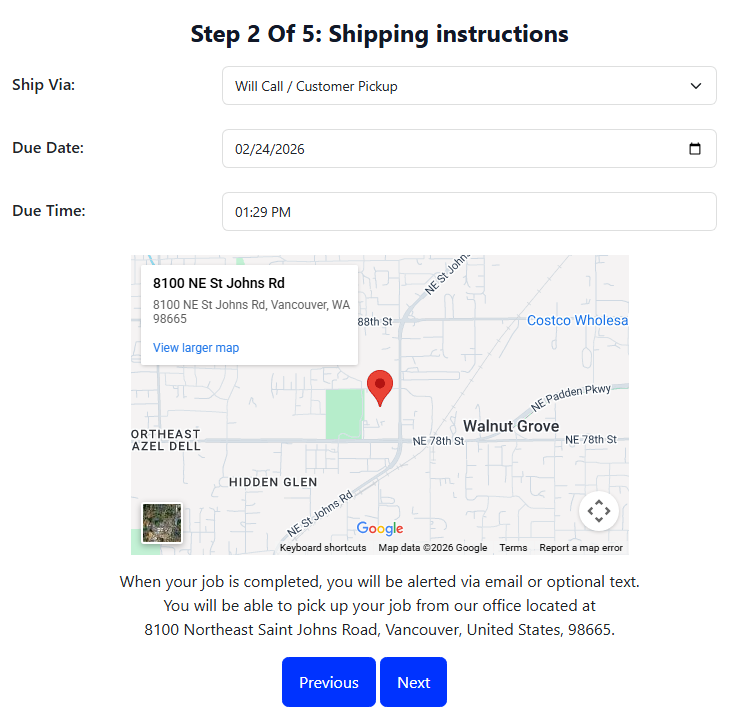
Step 2 of 5 - Shipping Instructions

You will have an opportunity to choose your delivery method in the "Ship Via" field.  Choose your due date and time. Them move on to step 3 by clicking next. 


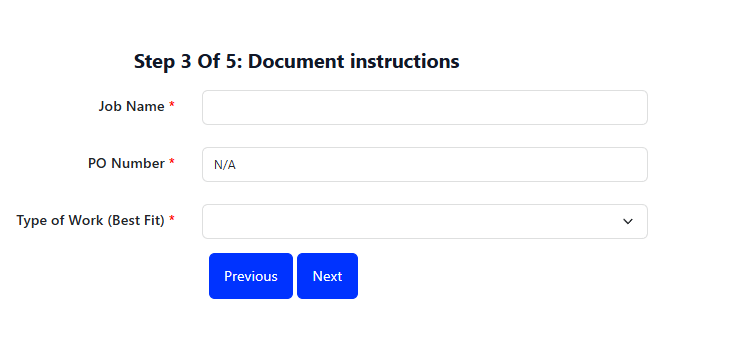
Step 3 of 5 - Document Instructions

Choose how many jobs do you want to upload? If you choose to upload multiple jobs, you will have an opportunity to repeat steps 3 to 5 for each job. This is common for customers who may want to apply a different purchase order (PO) for different jobs. Enter your job name and PO number in the field below. If you do not have a PO you can substitute this for anything you would like such as the job name. 


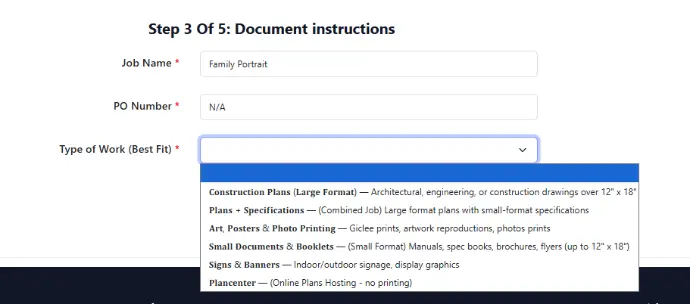
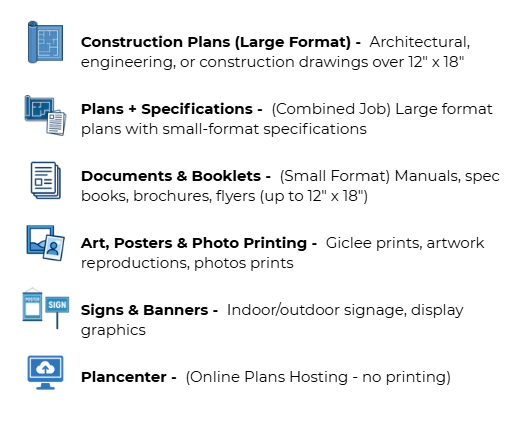
Next you can choose the Type of work. This is separated out into category's Discriptions will pop up in the list when you click on the pull down tab. 


Step 3A - Type of Work

When you select  a type of work, the required fields will appear in the window. Each type of work will have different questions required to submit your order. Below is an example of a large format document selections. 

  • Choose your paper size (Example: 24x36). 
  • Choose how many copy's or sets you would like (Example: 5  copy's). 

Sets vs. Copies in print jobs refers to how multiple versions of your document are produced and organized.

  • Copies: This is the total number of individual reproductions of your document. For example, if you request 10 copies of a 5-page report, you're asking for 10 identical versions of the full document (50 pages total).
  • Sets: A "set" means one complete, assembled copy of your multi-page document (e.g., one full 5-page report is 1 set). When you specify the number of sets, you're ordering that many complete, ready-to-use copies—often with pages in the correct sequential order (collated). For example, 10 sets of a 5-page document means 10 fully assembled copies, each with pages 1–5 in order.

Media Type

  • Choose your media type by clicking on the pull down. You will be presented with a window showing the available types. Example shown below.  


  • Click the pull down for the Binding Type and choose your selection. 
  • The Description / Instructions field is your field to give us any message you want.

Below is a view of a completed step 3 of 5.  


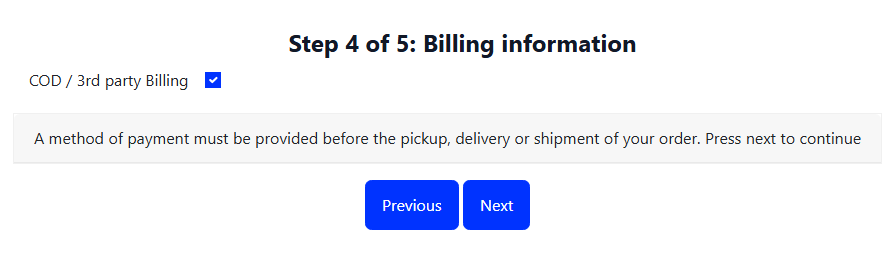
Step 4 - Billing Information

  When logged in as a guest you will only have one option and that is COD/3rd party billing. Click next to move to step 5. 


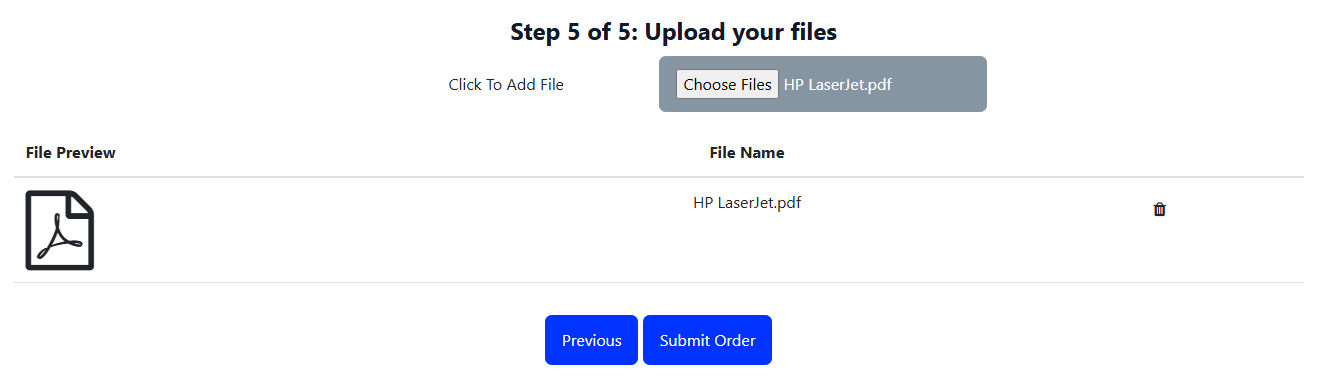
Step 5 - Choose files 

Click the Choose files button to select your files. When they are selected simply click "Submit Order" to send the order to j2. 


Step 5A - Multi Job Upload  

If in Step 3 you choose to upload more then 1 job you will have an additional button that allows you to submit your job and return to Step 3 and change your PO and choose a new set of files. Select "Submit job and add another job details" to return to step 3. 


Multi Job Upload - Next Job  

Multi job submissions will return you back to step 3 to start the next job upload. Note the "Uploading Media:2/2" on the screen showing you which job is currently being uploaded. Now repeat steps  


Congratulations on your first upload!

Thank you for reviewing this walk-through and uploading your first print job! 


No se permite comentar en este curso.